I like responsive systems and hate transitions - they unnecessarily delay appearance of useful information. Tofi is a lightweight & extremely fast dynamic menu (app launcher). In ideal case tofi window gets rendered right on the next frame in 2ms runtime - which is the fastest workflow one can get.
The obvious tradeoff is its customizability: tofi only uses a short amount of native styling options and doesn’t support some CPU-intense features like gradients, shadows, blurs, etc. However, that also makes the app easier to customize.
The less features you have to configure, the less POMO (pain of misconfigured options) you get.
Here’s now it works: tofi gets some stdin and shows you the selection window. You navigate to the entry you need and press Enter key. Tofi prints it to stdout1.
Custom menus
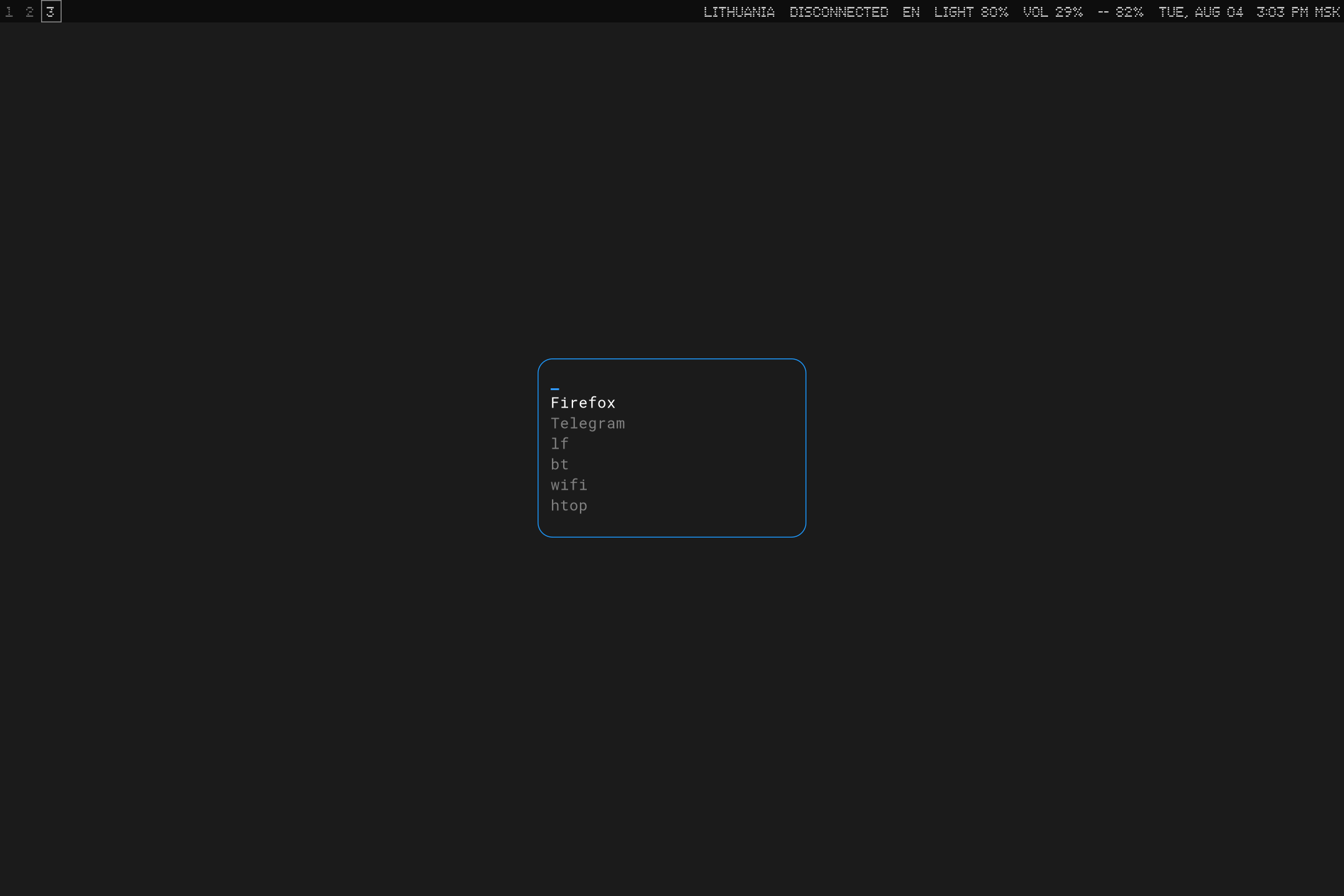
I’m also working on my own distinctive palette that I hardcode into my configs (this website theme has some of the main colors embedded, however, if you pay attention, the only accent here on the website is blue (
#3098f9
), the rest of colors are exclusively greyscale.
Replication hints
By design there’s a global tofi config that is automatically fetched from $XDG_CONFIG_HOME/tofi/config and defaults to $HOME/.config/tofi/config if XDG_CONFIG_HOME environment variable is unspecified.
Each custommenu should have its own config that overwrites some necessary options and keeps base values unchanged. This way you can independently change something in both files, without duplicating options.
border-color = #303030
border-width = 1
...
global_option = value
On top of this we want the custommenu to have own custom options:
import = config

placeholder-text = "<custommenu>"
border-color = #3098f9
...
local_option = value
Now let’s define the commands we want to be whitelisted in custommenu:
lf=alacritty -e lf
Telegram=/usr/bin/Telegram
...
alias=command
Now let’s code an actual script that stripes the entries from ~/.config/tofi/custommenu.txt and tells tofi where the command is (after first = symbol). The script would later be triggered with a keybinding
#!/bin/sh
menu_file="$HOME/.config/tofi/custommenu.txt"

choice=$(cut -d= -f1 "$menu_file" | tofi -c $HOME/.config/tofi/custommenu.conf)
[ -z "$choice" ] && exit 1

cmd=$(grep "^${choice}=" "$menu_file" | cut -d= -f2-)
[ -n "$cmd" ] && exec sh -c "$cmd"
Make sure you make the script executable with chmod +x
chmod +x ~/.config/tofi/custommenuLast thing to do is to enroll the script to some keybinding. This would depend on the WM you are using. I use sway, so I added this to my sway config:
bindsym $mod+Space exec ~/.config/tofi/custommenuIf you are not familiar with stdin/stdout terms, let me describe what’s going on...
There are three standard I/O streams that every process on Linux uses. They are: stdin, stdout and stderr. Each is just a file descriptor that points to your terminal by default.
In other words, you feed the program something instdin, the program runs and prints you both of two outputs -stdoutandstderr(the latter is usually empty).
These I/O streams can be managed in a clever way, for example you can printstderrto a specific file for logging or you can feed some file to the command (it’s more like function at this point) to get the processedstdout. For all of this shell has some useful redirection operators: e.g.< > | >> 2> &>- they all get handled before the whole command even runs.
Here’re some examples:sort < list.txt,echo "new line" >> list.txt,ls missing-file.txt 2> error.txt,printenv | grep SHELL
I suggest you comprehend them - it’s useful for understanding what’s going on in your terminal and really helps powerusing. Pipe|operator is OP, God bless the guy who invented it (he’s still alive , I’ve checked). ↩︎